Migrate to Reclaim Hosting

Step One: Signing up for an Account

Your first step is to sign up for an account at Reclaim Hosting. This link will take you directly to their Student/Individual Hosting plan option.

-If you already have a Top-Level domain (i.e. yourdomain.com) choose the I will use my existing domain and update my nameservers option.

-If your current website content exists on a subdomain (i.e. yourdomain.digitalscholarship.brown.edu), select the Register a New Domain option.

-Enter a new top-level domain name

Complete the sign-up process/pay invoice. If you’d like to take advantage of a 10% discount, enter the promo code reclaim4edu.

Step Two: Let Reclaim Hosting Know

Send a support request to support@reclaimhosting.com with the following message:

Hello Reclaim Hosting Support,
I am graduating from Brown University and I would like to migrate my account, (your domain), to Reclaim Hosting. Please let me know if you need anything else from me.
Best,
(Your Name)

A member of Reclaim Hosting support will respond & help you get your account migrated within 24 hrs.
Unlock your domain

This article applies only if you own your own top-level domain. If you have been using the free subdomain option with digitalscholarship.brown.edu through Brown University, this does not apply to you.

Similarly, if you’re migrating your content to Reclaim Hosting, this article does not apply to you.

Transferring a domain you already own is not too much different from registering a new domain, except the transfer process requires an EPP code, or an agreement code between your old registrar and your new registrar that allows the release of your domain. Your new registrar will have information on how to transfer in a domain. When you start that process, you will be prompted to enter your EPP code.

How to find your EPP Code:

  1. To get started, log in to your control panel (https://digitalscholarship.brown.edu/dashboard) using your Digital Scholarship at Brown username and password.
  2. Once you’re logged in, you’ll see the cPanel interface.  Now click on the Manage Your Account menu at the top of your screen and select Migration Information.

3. Click the Lock button to unlock your Brown University account.

4. Click Get Code. Once that’s done, the system will send you an email with your EPP code.

At this stage, here are a few items to note:

  • You’ll receive a series of emails from both your old and new registrars asking you to authorize the transfer. Please act on every email you receive in a timely fashion– even if the emails look like duplicates.
  • If you do not authorize the transfer in a timely fashion, the domain transfer will expire and you will need to start over.
  • The domain must be older than 60 days.
  • The domain must have no other transfers in the last 60 days.
  • The domain transfer process can take up to a week, depending on how fast your registrars work.
  • Once the domain transfer completes, you’ll receive a notification.

Export your domain

To export your domain, you will first have to create a backup of both the files in your domain and the databases that your domain draws from.  First, click on the ‘Manage Your Account’ menu at the top of your screen and select ‘Migration Information.

  1. To get started you’ll need to log in to your control panel (https://digitalscholarship.brown.edu/dashboard) using your Brown University username and password.
  2. Once you’re logged in, you’ll see the cPanel interface.  Now click on the Manage Your Account menu at the top of your screen and select Migration Information.
  3. To create a backup of your files and databases, simply click the button labeled Add Backup. The system will take a moment to create a backup. When it is complete, you will see the new backup appear below the button. You can click on this backup to download the file.

Choosing Your Domain Name

Choosing your domain name is the first step in getting started with staking your claim on the web. Your domain name is a unique web address (e.g. yourname.digitalscholarship.brown.edu) that can be used to build out your own digital presence. As you make your choice, there are a few considerations to keep in mind:

Your domain name must be available. Domain names must be unique, which means in order for you to claim your own, you need to be sure that it is currently available (and not being used by anyone else or any company or organization). There are many tools to check on domain availability; and the system checks your selection when you sign up for an account. If you’d rather spend some time thinking about your choice, you can always check domain availability here: whois.com.

Choose a domain you can live with. You should choose a domain name that you feel you can live with for quite some time. You should pick something that you won’t find embarrassing in the future. A good rule of thumb is to pick a domain that you would be comfortable putting on a future job application.

You may wish to include your name in your domain. There is no requirement that your domain reflects your specific identity in the form of your first and last name. However, choosing a domain name that includes your name may make it easier for you to achieve higher rankings in search engines when someone queries your real name.

Pick a domain you like. Your domain should reflect your work. It can reflect your research interests, projects, or it could simply be your name. The “right” domain for you is the one you’re comfortable with. If this is to be used for a project, you may want the domain name to represent the project.

Signing Up

Review the Guidelines

Before you get started, we recommend that you review our information about Choosing a Domain Name.

The Sign-Up Process

Once you’ve reviewed the guidelines, you can proceed to the sign-up page.

  1. Click the “Create” button
    Image of Create button on Landing Page
  2. You will be redirected to log in for verification. You will use your Brown username and password to log in.
  3. You are now ready to create a domain. To start, you must first sign up for a free subdomain (i.e., yoursite.digitalscholarship.brown.edu). Directions for purchasing a top-level domain (i.e. yourdomain.com) will be provided further down.

Option 1: Free Subdomain (Recommended)

For no cost, you can create a subdomain of digitalscholarship.brown.edu. This is the recommended way to proceed.

To create a free subdomain of digitalscholarship.brown.edu, leave this default option selected and enter the subdomain name you have chosen for your web presence. When you’ve found an available subdomain, click the  Continue button. For example, if you choose “yourdomain” as your subdomain, your full domain would be yourdomain.digitalscholarship.brown.edu.

Confirm that you like the name you selected. If you do, click the Sign Up button. (If not, click the Start Over button, and repeat the above step.)

You should now see a screen confirming that your subdomain is ready. After a few seconds, you will see the regular cPanel options.
Option 2: Buy a Top-Level Domain from Reclaim Hosting

It is easy to create your own top-level domain (a .com, .net or .org address). This allows you to select a URL for your website that is easy to remember and share.

While you are at Brown University, this is available for a nominal cost (currently $15/year). You can continue to use this domain after leaving Brown, although the cost may increase.

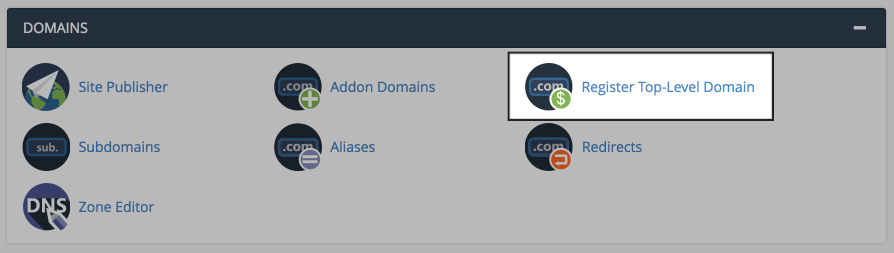
To register a top-level domain, log into your newly created cPanel, navigate to the Domains section, and click Register Top-Level Domain.

This panel offers a step-by-step guide to registering and adding a new top-level domain to your cPanel account.

Option 3: Connect an Existing Domain to Your cPanel

If you already have an existing domain that you’ve previously registered elsewhere, simply point your domain’s nameservers to ns1.reclaimhosting.com and ns2.reclaimhosting.com.

Understanding Accounts & Passwords

One aspect of this web hosting world that users may find complicated are the different accounts (and associated passwords) that you can manage as part of your participation. This section outlines the types of accounts that you are likely to have, what they are for, and how you go about resetting passwords on each of them.

Your cPanel Account

When you first sign up for your domain and hosting, a cPanel account will be generated that provides you with access to your slice of the web server. Your cPanel account is automatically associated with your Brown username and password. Therefore, your Brown username and password will grant you access to your cPanel account.

Your Application Administrator Accounts

Every time you install a new application in cPanel, an Administrator Account for that application will be created. You will likely use these accounts very often – every time you need to log in to your application to manage the associated website, you will use this account.

For example, if you install WordPress to manage your website, every time you need to add content to WordPress, change your theme, approve comments, etc., you will use this account to log in.

Usually, you will be given the opportunity to choose the username and password for that account. We recommend choosing something that you are likely to remember but that is strong and secure. Do not use your Brown username and password for these applications.

Upon installation, you will likely receive an email confirming the username/password combination you chose. It will also have information about how to access the login page for that application. It’s a good idea to keep this message.

Depending on the application you’re working with, managing and resetting the password for this account will vary. If you’ve used Installatron (in cPanel) to install the application, however, you can always review the account credentials:

  • Log in to cPanel
  • Find the application you installed under My Applications.
  • Click the Edit button (this looks like a blue wrench).
  • Scroll down to find the Administrator Username and Password.

In addition, most applications should have some kind of password reset link on the login page. For more information on resetting your application password through Installatron, click here.

Other Types of Accounts

In addition to the account types outlined above, there are a few other kinds of accounts you may have as part of this project:

  • When you sign up for a subdomain/top-level domain, cPanel will automatically create an FTP (File Transfer Protocol) account for you by default. FTP is a fast and convenient was to transfer large files online. You’ll also have the option of manually creating your own FTP account.
  • Application User Accounts: In addition to the Administrator Account that you set up when installing an application, most applications will also let you set up user profile accounts within each application.

Privacy

What you add to your webspace rests entirely with you (within Brown University policies as outlined in the Guidelines for use). You can choose not to pick a domain that reveals your name. You can use a pseudonym on your actual site. However, when you sign up through the default process, your name does get published as part of the public record about your domain name. Anyone can find it by looking up details about the ownership of that domain name through a public “Whois” request.

This is NOT an issue if you’re already planning on using your name openly on your site (in your domain name or elsewhere). This option is aimed at those who, for whatever reason, feel they want to take every precaution to hide their identity on their site.

What Can You Do with Your Account?

Your ability to do things on this webspace is dictated to a large degree by the limits of your imagination (and Brown’s policies). That said, there are some technical requirements and limitations that you should review.

Here are some ideas that might help you get started:

Install a Web Application in Your Space

This hosting space makes it very simple to install certain web applications in your cPanel account. Web applications are just special software that run on a web server. Usually, they allow you to build and manage a website. The kind of site you can build depends on the type of application you install. Here are some examples of applications that you can easily install within the digitalscholarship.brown.edu web hosting interface:

WordPress: WordPress is a simple-to-use blogging application. The tool also comes with a huge array of plugins and themes to allow you to create virtually any kind of website imaginable.

""

Omeka: Omeka is an open source web application that can be used to create and display online digital collections and archives.

Scalar: Scalar is a content management system (CMS) that enables the creation of media-rich, non-linear, digital books.

Grav: Grav is an open source, flat-file CMS made for folks who are looking for something a little more experimental. Grav provides a straightforward framework for creating pages and inserting media.

Mediawiki: It is the open-source wiki software that runs the online encyclopedia, Wikipedia. This tool may be right for you if you’re interested in publishing documents and then collaborating with others on them.

These are just a few of the open-source applications that are available to you in your hosting space. We encourage you to read more about what web applications are and which ones are available to you through this project. Digital Scholarship at Brown provides shell access, and it is possible to install some other software, but this is not a bare server like AWS or Digital Ocean. Please discuss this with CDS staff before trying it. cds_info@brown.edu

Organize Your Site with Subdomains and Folders

Through this project, you’ve received a domain name that you can actually subdivide and organize anyway you like. One easy way to organize your domain is to create subdomains, in which you can then install other applications. More simply, you can set up subfolders for your site (which can also have their own applications installed in them). The table below provides examples of how you might organize your site using the subdomain vs. the subfolder approach.

Subdomain Approach Subfolder Approach
yourdomain.com (“root”) Install WordPress as your “main site” yourdomain.com (“root”)
course1.yourdomain.com Install a second WordPress instance for a course you’re taking. yourdomain.com/course1
photos.yourdomain.com Install ZenPhoto for a public photo gallery of your photos. yourdomain.com/photos
docs.yourdomain.com Install MediaWiki for a club you belong to that wants to collaboratively edit its bylaws. yourdomain.com/docs
files.yourdomain.com Install OwnCloud so you can access your files on your laptop and at work. yourdomain.com/files

There is no one solution to this challenge of organizing your installed applications. What you do should be driven by what makes sense to you. To start, you may want to install one thing at the root of your domain, and then let the rest evolve as you learn what’s possible. Note that any subdomain that you create adds a fourth level to the name of your site: subdomain.yourname.digitalscholarship.brown.edu.

Map Your Domain (or a Subdomain)

If you already have a digital presence that you’d like to pull into your hosting space, domain mapping is an option you may wish to explore. This allows you to assign your domain (or a subdomain) to another service. Some services that work with domain mapping are:

When you map a domain, users who visit your URL will automatically see your space on one of these services. It’s a great way to incorporate your activity elsewhere into your domain, and it might be a good first step if you’ve already established a presence somewhere else and just want to point your new domain to that space.

What Exactly Is a Web Application?

In the most general terms, a web application is a piece of software that runs on a web server. A web server is a specialized computer designed to host web pages.

Many web applications are comprised of two components: files and a database. When you install a web application, you will need to make sure all of the files are copied over into the appropriate location AND that a database (and database user account) has been set up to connect to those files. Often, you will have to do some configuration to make sure the application knows how to access the database.

The system we use for this web hosting space uses a special script installer called Installatron (in cPanel) that allows you to automatically install dozens of open source applications. When you use Installatron, you don’t need to worry about moving files, creating databases, or doing the initial configuration. It’s all taken care of for you.

Digital Scholarship at Brown is configured as a LAMP server, so web applications have to be able to run under this type server. Occasionally, a web application may require additional components or modules that need to be installed on the server.

Static and Dynamic Websites

Static Websites

In the early days of the web, almost all web sites were what is known as 'static sites.' Content (text, images, video, audio, etc), was placed or embedded in a file in which HTML tags were used to format it. If you looked at the actual contents of the file, you might see something like this:

The content and the tags lived side-by-side. To edit the page, you’d open up the file (on your own computer) in a program capable of editing HTML files and make changes to either the content or the presentation. Sometimes, each page was edited individually, even if the edits were for common elements that appeared on many pages, like menu bars.

From a technical perspective, accessing a static web site is fairly straightforward. When your computer is connected to the Internet, you can use a web browser to access files on a web server (as long as you know the address). The web server delivers the contents of those files to your browser, and your browser displays them.

Dynamic Websites

Over time, as the web became more sophisticated, new systems emerged for creating and managing web sites. These moved beyond the model of placing content and HTML tags in a single file which the browser accessed and displayed. Instead, these systems were web applications – software that runs on the Web server and manages a web site, often with sophisticated features. One feature of these applications is that they separate content and presentation by storing most content (your text, images, etc.) and data about the site (the title, options, etc.) in a database.

On the web server, the web application installs program files that are written in a programming language. The server reads this code and executes requests to access data in the database (which lives on a separate server) and display it according to the instructions in the code.

The data for the site is stored in a series of tables in a database on a database server, and is entirely separate from the actual presentation of the site, which is determined by the web application. Special software on both the web server and the database server enable the two to communicate and pass information back and forth.

One of the benefits of using a seb application is that you usually don’t need to touch (or even look at!) the code in order to make changes to your content. In addition, editing the site usually involves accessing a control panel through your web browser and filling out a form, instead of having to download and edit files in software on your own computer.

Dynamic vs. Static Content

Sometimes comparisons between dynamic and static content focus on whether or not the content is “fresh” (dynamic, regularly updated) or “old” (static, never updated). How frequently you update your content is unrelated to the kind of system you are using to manage your site. You might manage a static web site (as described above) and update the content every day. You may also have a dynamic web site (running in WordPress, for example) and never change the content after you create it.

Generally speaking, it is easier to regularly update content on a dynamic web site because the web application makes it easier. Sometimes, even when you just want a very basic page or placeholder, it’s easier to install a web application (and only put up a single page) than to manually create an HTML page and upload it.

A Side Note about Separating Content from Presentation: Style Sheets

Another aspect of separating content from presentation involves the use of Cascading Style Sheets (CSS). These are special files that live on your web server and are linked to your web pages. They contain information, written in a special markup language, that defines the appearance of the HTML elements on your pages. For example, they allow you to define in a single location what all Level 1 Headings look like on your site. They are an important aspect of understanding how to separate content from presentation, but they’re also not really an aspect of the difference between static and dynamic sites. Both static and dynamic sites can use style sheets.