Installatron is a script installer that allows you to quickly and easily install web applications on your web space. By default, when you use Installatron, the application you add will be automatically upgraded whenever a new version is available (and a backup will be kept, just in case).
Installing Applications Using Installatron
To get started, you’ll need to log in to your cPanel (control panel) by going to https://digitalscholarship.brown.edu/dashboard/.
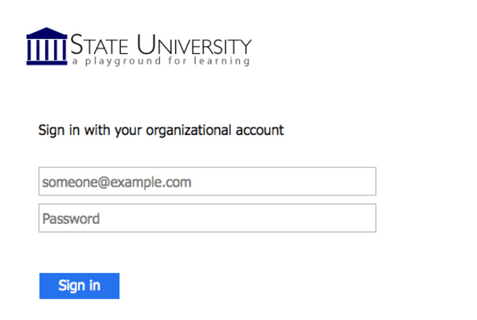
- On the Digital Scholarship at Brown home page, log in with your Brown username and password.
- Once logged in, you’ll be on the homepage of your control panel (cPanel). You will need to scroll down until you see a section of your cPanel labeled Web Applications. Within this section, you will see a link to the Installatron which you should click. Or, you can type “installatron” (without quotes) into the search bar. When you press enter you will automatically be redirected to the Installatron page.

- A listing of all of the applications you can install by default in Installatron will appear. Navigate to the one you want to install, and click the icon.
- After clicking the icon, a page will appear with information about the application, links to resources, and a link to install it.

- Click install this application when you are ready.
- A page will appear with a number of settings you can choose/change. The image below shows these settings; here is a rundown of them:

-
- Location: You’ll need to choose where to install your new application. You can install it at the root of your domain or in a subdomain (which you need to set up first). In addition, you can place your application in a folder (in either your root domain or a subdomain).
- Version Information: You can choose a version of the application. Generally, we recommend choosing the default version. It is likely to be the most recent, stable release.
- Updates & Database Management: By default, the system is set up to automatically upgrade (and create backups upon upgrading) all applications. In addition, by default, the database will be set up for you automatically. We recommend NOT changing these options.
- Username/Password: A username/password will be automatically generated for you. You can choose to change this if you like.
- Click Install: After installation, you’ll be taken back to the main Installatron page, with details about the application you just installed. You can come back here at any time to review the application details, back it up manually, or uninstall it.
To get to your new site, you can click the “website” link. What’s more, with certain applications, you can use this space to log in to the the applications admin page.
In addition, you’ll have received an email with your username/password and a link to your new site.
